Introduction
When integrating Azure Functions with Dynamics 365 CE (Dataverse), many developers still rely on the traditional approach of using Client ID + Client Secret combination And yes it works. But just because something works doesn’t mean it’s the best or most secure way to do it.
Across many real-world projects, I’ve seen teams continue to use client IDs and secrets simply because it’s familiar. However, this often leads to unnecessary security risks, extra maintenance, and more complex configurations than needed in modern Azure environments.
In real-world enterprise environments, managing secrets quickly becomes a headache. They need to be stored securely, rotated regularly, monitored for leaks, and updated across environments. One small mistake can expose sensitive systems or break production workloads.
❌ Secrets must be stored and rotated
❌ Risk of accidental leakage
❌ More configuration complexity
❌ Not enterprise‑secure
In short — it’s outdated for modern cloud-native applications.
Thankfully, Azure provides a much better solution: Managed Identity.
With Azure Managed Identity, your Azure Function can authenticate to Dataverse securely without storing any secrets at all. Azure automatically handles credential creation, rotation, and token issuance behind the scenes — giving you a cleaner, safer, and more enterprise-ready architecture.
Azure Managed Identity solves all of these problems by providing:
✅ Secret‑less authentication
✅ Automatic credential rotation
✅ Strong security boundary
✅ Azure‑native token issuance
What You Will Learn
- Difference between System Assigned vs User Assigned Managed Identity
- Naming best practices for User‑Assigned Managed Identity (UAMI)
- Adding Managed Identity as a Dataverse Application User
- Local development challenges with DefaultAzureCredential and How to resolve them
- How to fix “Anonymous authentication” and “User is not a member” errors
- How Managed Identity behaves across tenants (and why it cannot cross them)
- Full Program.cs and azure function code to connect Dynamics 365 with Managed Identity
- When to choose System Assigned vs User Assigned MI
- Common Errors and How to solve them
What is Azure Managed Identity?
Managed Identity provides an automatically managed Azure AD identity for Azure services.
Azure handles:
- Token issuance
- Credential rotation
- Secure authentication
So basically your app never stores secrets.
Types of Managed Identity
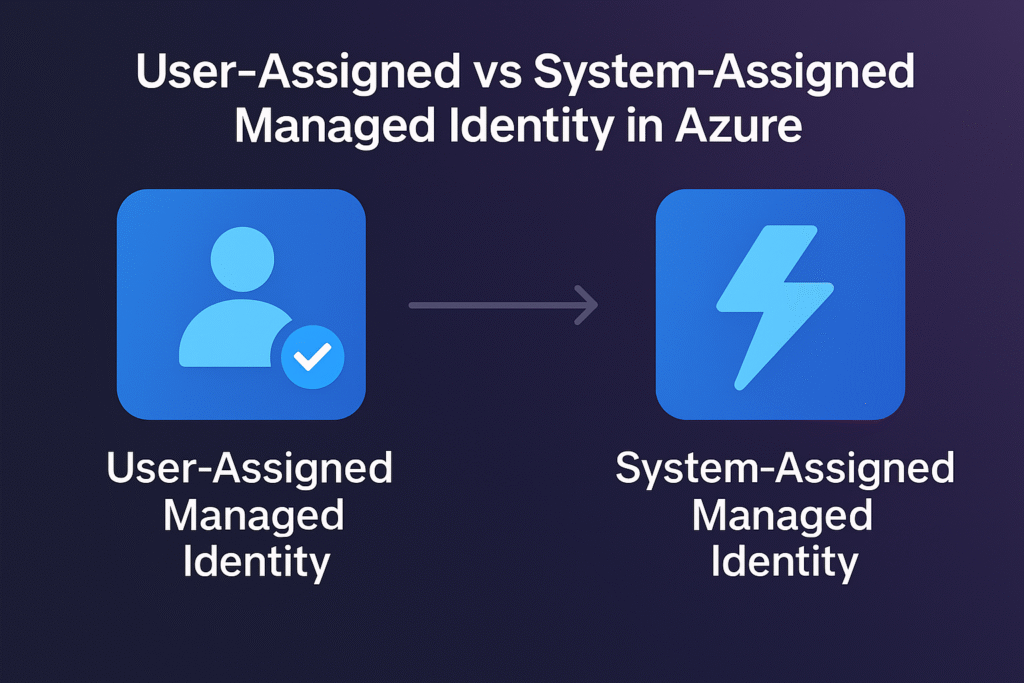
▶ System Assigned Managed Identity
- Enabled directly on the Function App
- Tied to resource lifecycle (Once resource is deleted, this will also be deleted)
- Cannot be shared across resources
- Simple for demos and POCs
▶ User Assigned Managed Identity (UAMI)
- Best for enterprise workloads, governance, DevOps
- Created as a standalone resource
- Can be assigned to multiple resources
- Has its own lifecycle
Naming practice should be uami-<workload>-<purpose>
📌 Example formats:
👉 uami-func-dataverse-prod
👉 uami-orders-api-d365-dev
👉 uami-reporting-dataverse-test
Part 1 – Using System Assigned Managed Identity
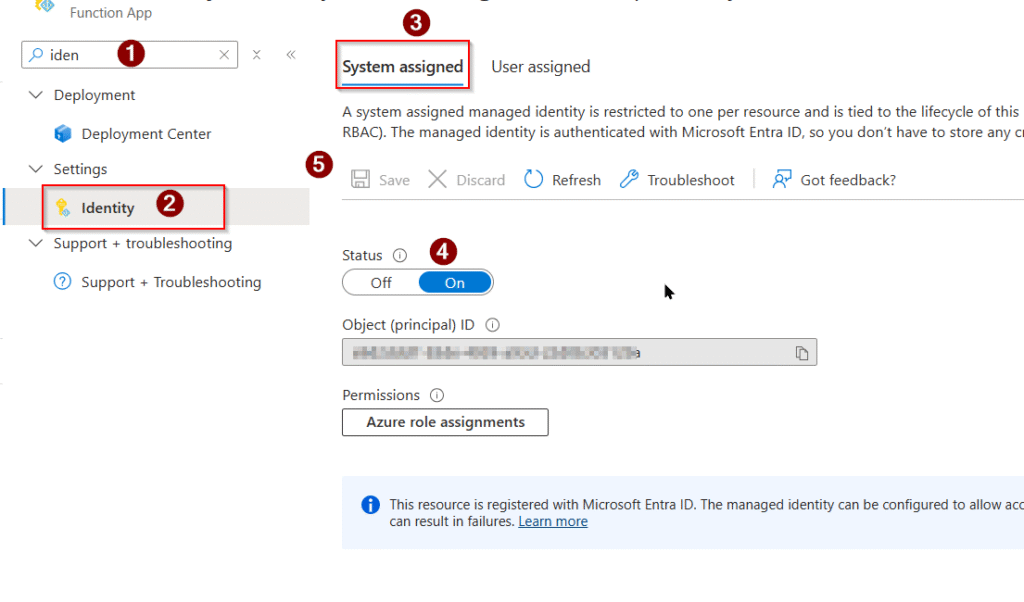
✅ Step 1 — Enable System Assigned Identity
Azure Portal → Function App → Identity → System Assigned → ON → Save
✅ Step 2 — Add Identity to Dataverse
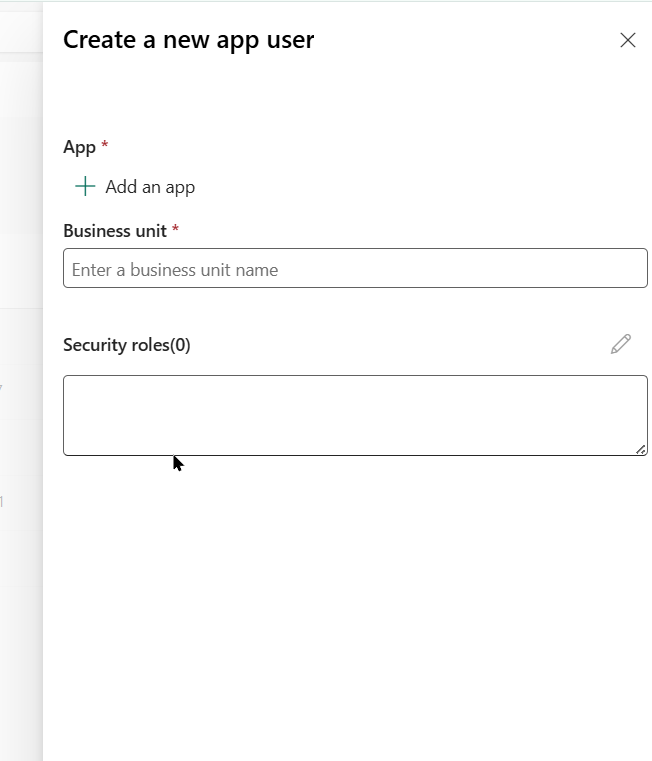
Power Platform Admin Center → Environment → Settings → Application Users → New
Use:
- Application ID = Enterprise App’s Application (Client) ID for the system-assigned MI
- NOT the Object ID

Add the details here and assign security role
Step 3 — Code (For System managed Identity)
using Azure.Identity;
using Microsoft.PowerPlatform.Dataverse.Client;

public class DataverseService
{
    private readonly string _url = "https://yourorg.crm.dynamics.com";

    public ServiceClient GetClient()
    {
        var credential = new DefaultAzureCredential();

        return new ServiceClient(
            new Uri(_url),
            credential
        );
    }
}
Part 2 – Using User Assigned Managed Identity
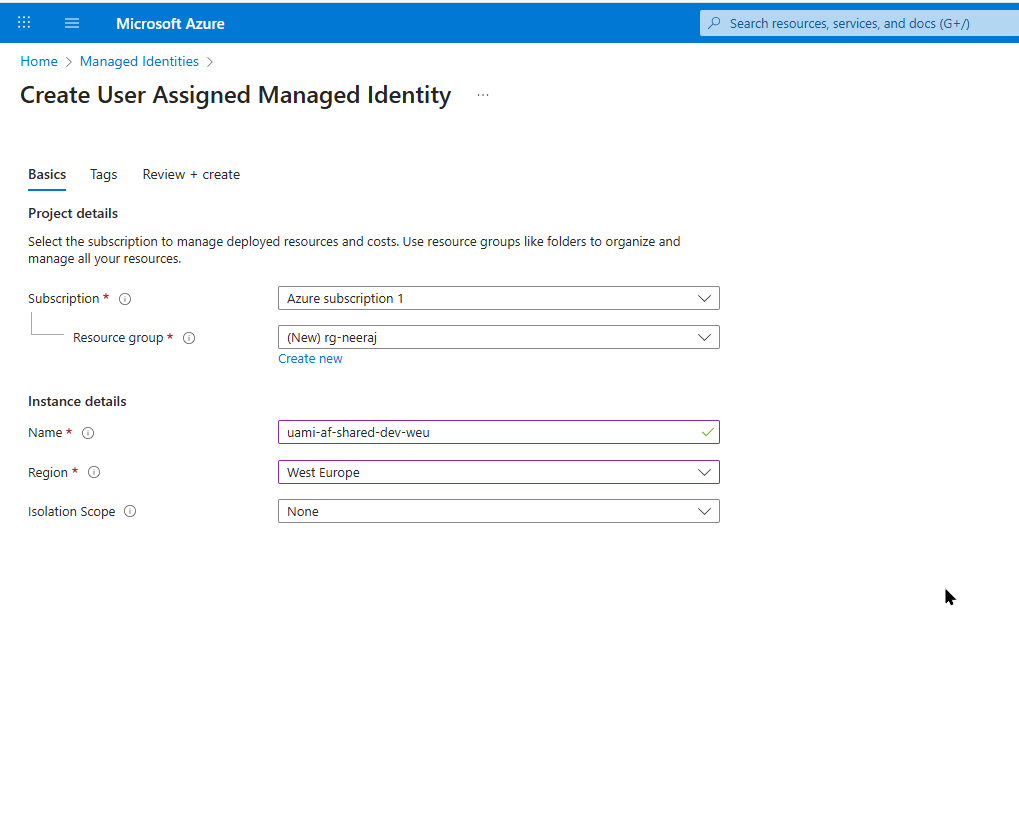
Step 1 : Create User Assigned Identity
Azure Portal → Managed Identities → Create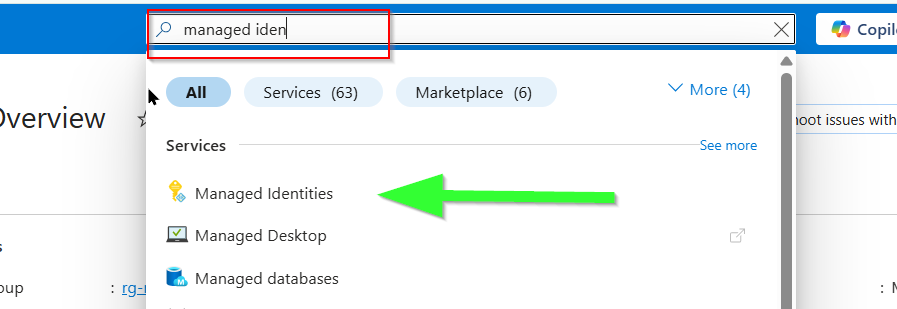
Creating UAMI (User Assigned Managed Identity) Copy the Client Id once created. (Not Object Id)
We will need that later.
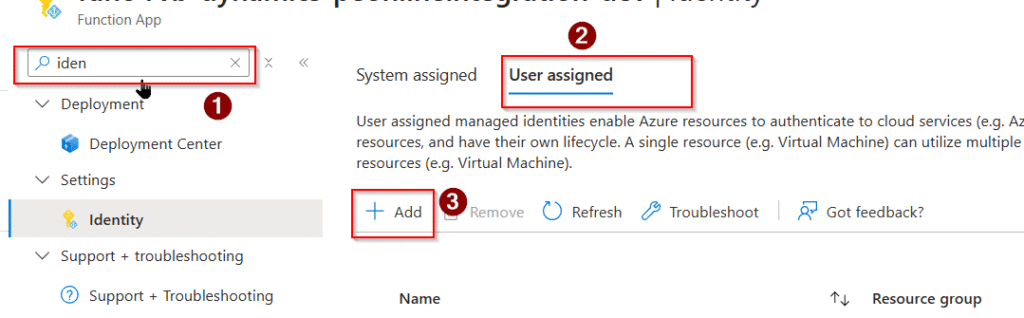
Step 2 : Attach to Azure Function
Function App → Identity → User Assigned → Add
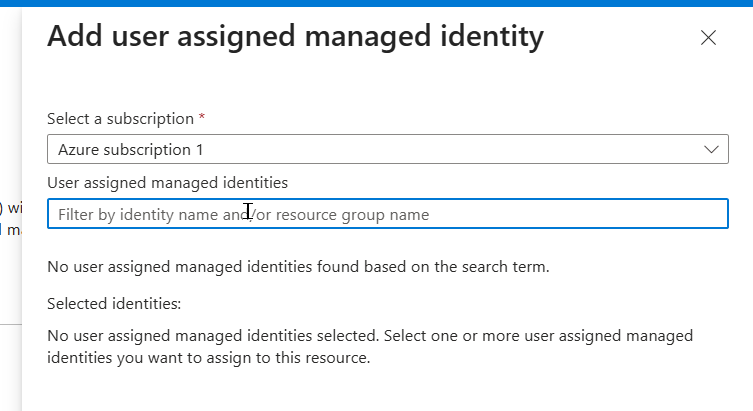
Select the identity. Similar step but select User assigned here.
Select your user assigned identity here
Step 3 : Grant Dataverse Access (Add UAMI as Dataverse Application User)
Power Platform Admin Center → Application Users → Add
Use:
- Client ID of User Assigned MI
- Assign security role
(Basically same step that was shown above for System Managed Identity)

Step 4 : Code (same for both Managed Identity types)
You can let Azure auto-pick, or specify:
var credential = new DefaultAzureCredential(
    new DefaultAzureCredentialOptions
    {
        ManagedIdentityClientId = "<USER_ASSIGNED_CLIENT_ID>"
    });
System Assigned vs User Assigned – Comparison
| Feature | System Assigned | User Assigned |
| Setup | Very Easy | Slightly more steps |
| Lifecycle | Tied to the resource | Independent |
| Reusable | ❌ No | ✅ Yes |
| Multi apps | ❌ No | ✅ Yes |
| Governance | Limited | Strong |
| Enterprise ready | Moderate | High (recommended) |
Which Should You Use?
Use System Assigned when:
✔ Demos
✔ POCs
✔ Single small app
Use User Assigned when:
✔ Production workloads
✔ Multiple Azure services
✔ Enterprise environments
✔ Need central permission management
👉 Best Practice: User Assigned Managed Identity
Benefits Over Client Secret
✅ No secrets stored
✅ No expiry issues
✅ Higher security
✅ Cleaner deployments
✅ Azure-native auth
Local Development — The Most Misunderstood Part
I have specifically highlighted this section because when you run the exact same setup on your local machine, you may encounter confusing authentication errors.
Why? Because your Function App cannot use Managed Identity locally. Instead, DefaultAzureCredential switches to whichever identity you are logged into (Visual Studio, Azure CLI, VS Code). If that identity does not exist in Dataverse, or belongs to a different tenant, you will inevitably get errors such as:
- User is not a member of the organization
- The HTTP request was forbidden with client authentication scheme ‘Anonymous’

❗ This identity MUST exist in Dataverse as a normal user.
Understanding this behavior is key to avoiding hours of debugging. Here in my case, when I was testing locally, my visual studio was signed in with another enterprise account (lets say XYZ) and when I run the debug button, that gave me error that user XUZ is not the user in the dynamics 365 and that is also true because YYZ is not registered as a dataverse user in dynamics. Now I log out with that account in visual studio and then signed with the user account which is also a dataverse user in dynamics (as shown below) and then local debugging worked.
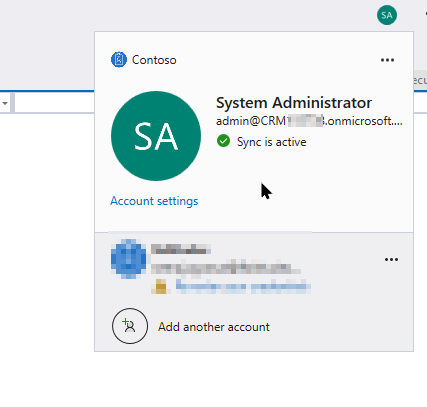
✔ Fix:
- Add your personal user to Dataverse (Enabled Users)
- Assign System Administrator role
- Make sure Visual Studio uses that same account which is present in dataverse/dynamics
- Remove other conflicting accounts from Visual Studio
If tokens come from the wrong tenant → Dataverse rejects them → Anonymous authentication.
After I made the changes with right account, I am able to debug it locally even without client secret
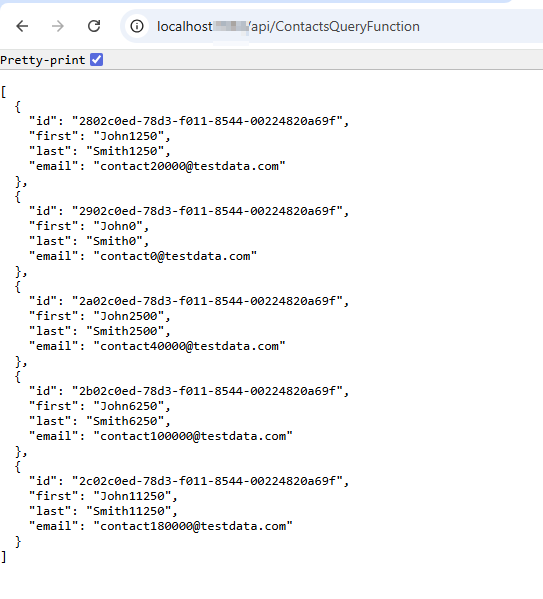

✔ Fix:
- Add your personal user to Dataverse (Enabled Users)
- Assign System Administrator role
- Make sure Visual Studio or
az loginuses that same account - Remove other conflicting accounts from Visual Studio
If tokens come from the wrong tenant → Dataverse rejects them → Anonymous authentication.
Full Working Program.cs for .NET 8 Isolated Azure Functions
This is the azure function (HTTP trigger) I used for the demo. You can download the full code project from the Github link : https://github.com/neeraj1202/ConnectD365.ManagedIdentities/blob/main/ContactsQueryFunction.cs
public class ContactsQueryFunction
{
    private readonly ILogger<ContactsQueryFunction> _logger;
    private readonly IOrganizationServiceAsync2 _svc;

    public ContactsQueryFunction(IOrganizationServiceAsync2 svc, ILogger<ContactsQueryFunction> logger)
    {
        _svc = svc;
        _logger = logger;
    }

    [Function("ContactsQueryFunction")]
    public async Task<HttpResponseData> Run(
    [HttpTrigger(AuthorizationLevel.Function, "get", "post")] HttpRequestData req)
    {
        _logger.LogInformation("C# HTTP trigger function processed a request.");

        //Retrieving top 5 contacts records from Dynamics 365
        var query = new QueryExpression("contact")
        {
            TopCount = 5,
            ColumnSet = new ColumnSet("contactid", "firstname", "lastname", "emailaddress1")
        };

        //Results from dynamics 365 comes in Entiy collection
        var result = await _svc.RetrieveMultipleAsync(query);

        //Modelling into Payload. You can also create contact model class for that.
        var payload = result.Entities.Select(e => new
        {
            id = e.Id,
            first = e.GetAttributeValue<string>("firstname"),
            last = e.GetAttributeValue<string>("lastname"),
            email = e.GetAttributeValue<string>("emailaddress1")
        });

        var response = req.CreateResponse(HttpStatusCode.OK);
        await response.WriteAsJsonAsync(payload);

        // Log the actual JSON being returned
        _logger.LogInformation("Response payload: {Response}",
            System.Text.Json.JsonSerializer.Serialize(payload));

        return response;
    }
}
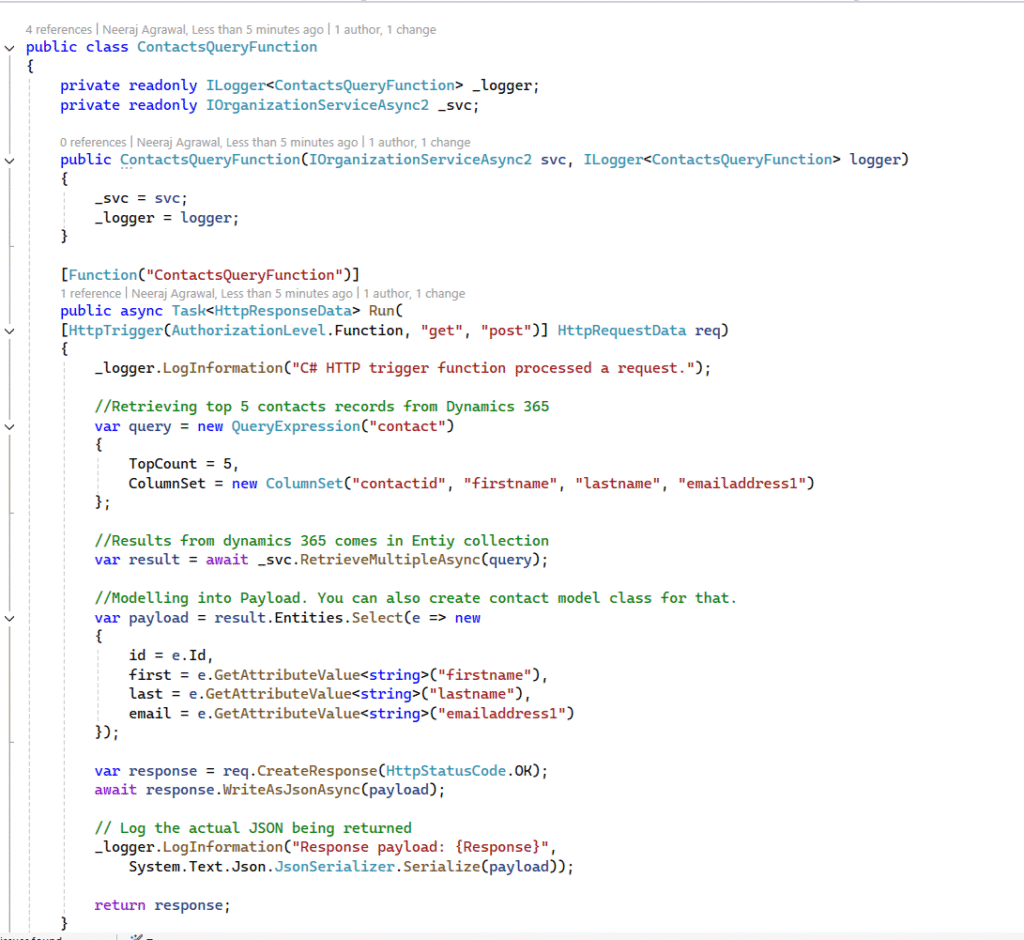
Here is my program.cs
using System;
using System.Threading.Tasks;
using Azure.Core;
using Azure.Identity;
using Microsoft.Azure.Functions.Worker;
using Microsoft.Azure.Functions.Worker.Builder;
using Microsoft.Extensions.DependencyInjection;
using Microsoft.Extensions.Hosting;
using Microsoft.PowerPlatform.Dataverse.Client;
using Microsoft.Xrm.Sdk;

var builder = FunctionsApplication.CreateBuilder(args);

// Keep the isolated worker pipeline
builder.ConfigureFunctionsWebApplication();

// App Insights (as you had)
builder.Services
    .AddApplicationInsightsTelemetryWorkerService()
    .ConfigureFunctionsApplicationInsights();

// >>> Capture configuration ONCE from the outer builder
var configuration = builder.Configuration;

// Register Dataverse client (Managed Identity) using captured configuration
builder.Services.AddSingleton<IOrganizationServiceAsync2>(sp =>
{
    var dataverseUrl = configuration["DATAVERSE_URL"]
        ?? throw new InvalidOperationException("DATAVERSE_URL app setting is required.");

    // Optional if you use a User-Assigned MI; keep null/empty for system-assigned MI
    var uamiClientId = configuration["MANAGED_IDENTITY_CLIENT_ID"];

    // Build DefaultAzureCredential (pin to UAMI when provided)
    var credential = new DefaultAzureCredential(new DefaultAzureCredentialOptions
    {
        ManagedIdentityClientId = uamiClientId
    });

    // Token provider for ServiceClient (uses /.default scope on your org URL)
    async Task<string> TokenProvider(string instanceUrl)
    {
        var baseUrl = new Uri(instanceUrl).GetLeftPart(UriPartial.Authority);
        var scopes = new[] { $"{baseUrl}/.default" };
        var token = await credential.GetTokenAsync(new TokenRequestContext(scopes));
        return token.Token;
    }

    // Use the “bring your own token” constructor
    return new ServiceClient(
        new Uri(dataverseUrl),
        TokenProvider,
        useUniqueInstance: true
    );
});

builder.Build().Run();
Local.Seetings.json for local should look like this
{
  "IsEncrypted": false,
  "Values": {
    "AzureWebJobsStorage": "UseDevelopmentStorage=true",
    "FUNCTIONS_WORKER_RUNTIME": "dotnet-isolated",
    "DATAVERSE_URL": "https://yourorganization.crm.dynamics.com",
    "MANAGED_IDENTITY_CLIENT_ID": "<your clientid>"
  }
}
❌ Cross‑Tenant Dataverse: Why Managed Identity Does NOT Work
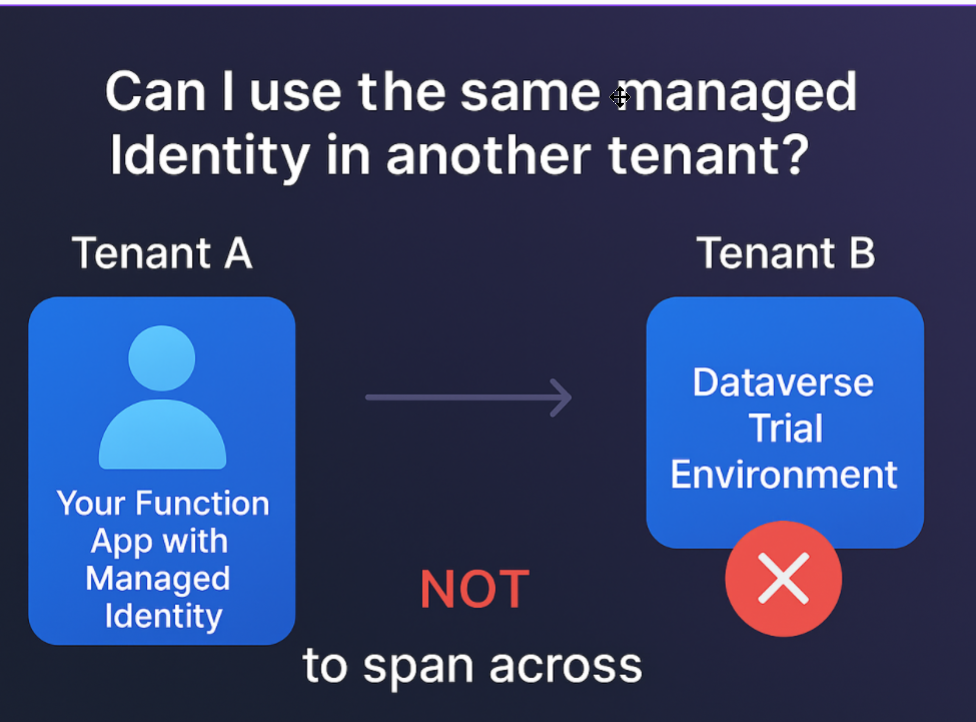
When working with Azure Managed Identity, a common misconception is that the same Managed Identity can be reused across multiple tenants especially when accessing Dynamics 365 / Dataverse environments such as trials or sandboxes that live in different tenants.
In reality, Managed Identities are strictly bound to the Azure tenant where they are created. They do not exist outside that tenant’s Microsoft Entra ID (Azure AD).
Here’s a simple example to make it clear.
Understanding with example
Tenant A (your Azure subscription)
- You create an Azure Function App
- You enable Managed Identity on it
Azure automatically creates:
👉 A service principal (Managed Identity) in Tenant A’s Entra ID
Let’s call it:
MI-App-TenantA
You then grant this identity access to:
✅ Dataverse environment in Tenant A
✅ Azure resources in Tenant A
Everything works perfectly.
Tenant B (separate tenant – maybe a Dataverse trial)
Now you also have:
- A Dataverse trial environment in Tenant B
You might think:
“I’ll just use the same Managed Identity from Tenant A to access Tenant B.”
❌ This does NOT work.
Why?
Because:
• The Managed Identity only exists in Tenant A
• Tenant B has no knowledge of MI-App-TenantA
• There is no trust or object representing it by default
So authentication fails.
But here is the summary for that :
👉 Managed Identities are strictly tenant‑bound.
They belong to one Azure AD tenant and cannot be used outside of it.
Because of this, the following will NOT work:
🚫 1. Use a Managed Identity from Tenant A to authenticate to Dataverse in Tenant B
Dataverse only accepts tokens issued from the same tenant where the environment exists.
🚫 2. Register a Managed Identity from Tenant A as an Application User in Tenant B
Dataverse Application Users require an Application (Client) ID from an app inside the same tenant.
A Managed Identity’s service principal does not exist in other tenants.
🧠 Why this limitation exists
Managed Identities are automatically created service principals inside a single Azure AD tenant.
They are not multi‑tenant and cannot be shared, delegated, or federated across tenants.
✔ So… what if you must connect cross‑tenant?
If your Azure Function is in Tenant A but your Dataverse environment is in Tenant B, you must use an authentication method that supports multi‑tenant scenarios.
✅ The correct solution: Multi‑Tenant App Registration
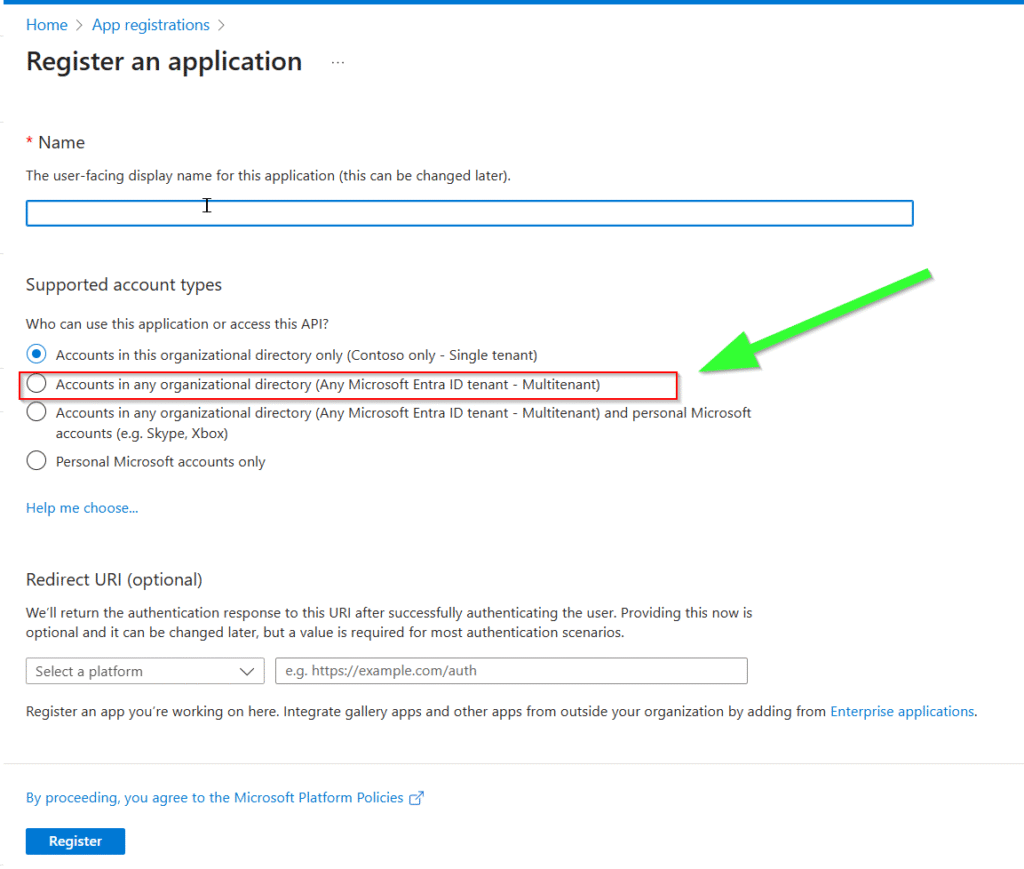
Instead of Managed Identity, create an App Registration that supports multi‑tenant authentication:
- In Tenant A – Create an App Registration
- Mark it as multi‑tenant
- Generate a client secret or certificate
- In Tenant B – Add the Application (Client) ID as a Dataverse Application User
- Assign the necessary Dataverse security role
This flow works because Azure AD can issue tokens to multi‑tenant apps, and Data verse can validate them. When working in the same Azure AD tenant => Managed Identity is perfect, secure, and recommended. But the moment you cross a tenant boundary => Managed Identity becomes invisible to environments in the other tenant.
Think of it like this:
💡 “A Managed Identity has a passport valid only inside its home country (its Azure AD tenant).
It cannot cross the border and identify itself in another country (another tenant).”
If you need cross‑border travel →
you must use a passport that works everywhere → a Multi‑Tenant App Registration.
Recommended Approaches
| Scenarios | Recommended Auth |
| Local development | Your personal user (DefaultAzureCredential) |
| Azure deployment (same tenant) | User Assigned MI |
| Small POCs / quick demos | System Assigned MI |
| Multi‑tenant Dataverse access | App Registration (multi‑tenant) |
| Enterprise production systems | User Assigned MI + custom Dataverse security role |
✔ Solution if cross‑tenant is required:
Use multi‑tenant App Registration + client secret/certificate.
Common Errors
401 Unauthorized
- Identity not added to Dataverse
- Missing security role
- Visual studio account is not a user in your dataverse

Conclusion
Azure Managed Identity is the modern and secure way to connect Azure Functions with Dynamics 365 CE.
While System Assigned is great for quick setups, User Assigned Managed Identity is the best choice for scalable and enterprise-grade solutions.
👉 If you’re building production systems, always go with User Assigned.
Thanks for reading my blog 🙂

Dynamics 365 Senior Consultant with deep expertise in customization, optimization, and integrations. Committed to giving back to the CRM community by breaking down complex concepts, sharing real-world insights, and helping others succeed with Dynamics 365 & Azure.
No responses yet